Fixing issues
Read your results
What the score, the severity groups and each issue row tell you, and where to start.
The summary at the top
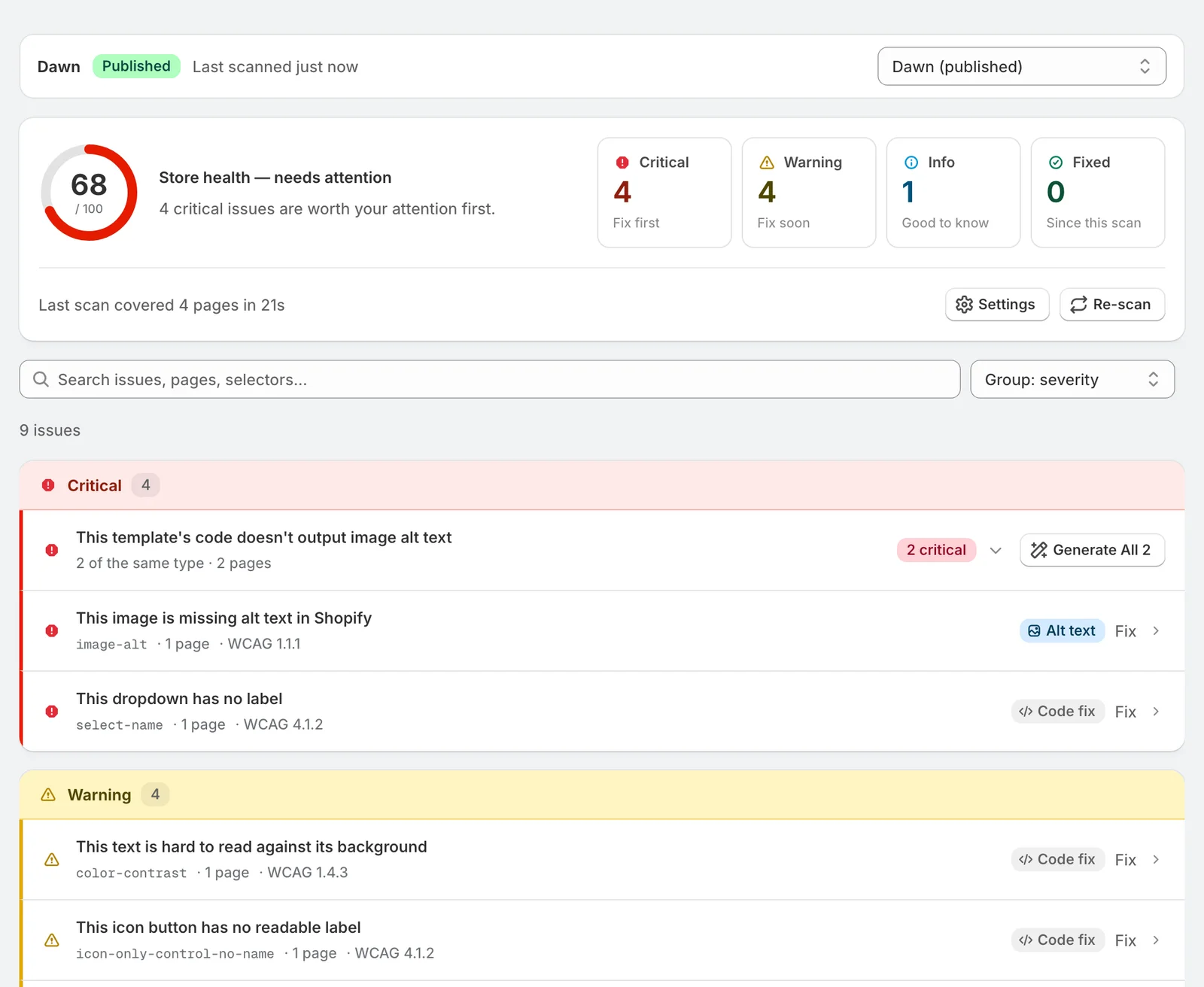
- Store health is a score out of 100. The status beside it reads looking great from 90, a few things to fix from 70, and needs attention below that. See Your health score.
- Critical, Warning and Info count open issues by severity. Fixed counts what you've fixed since the scan. Click a count to show only that group.
- The line under the score says how many pages the last scan covered, and how long it took.
What the severities mean
Issues are sorted by how much they get in a shopper's way.
| Severity | Meaning | Example |
|---|---|---|
| Critical | Blocks someone from part of your store. Fix these first | An image with no description, a button with no name |
| Warning | Makes part of your store hard to use | Text that is hard to read against its background |
| Info | A smaller improvement | A skipped heading level |
A missing image description is always Critical. A shopper using a screen reader gets nothing from that image.
Each issue row
A row names the issue in plain language. Under it are the check behind it, the number of pages, and the WCAG success criterion. A label on the right says how the issue gets fixed:
- Code fix: a change to your theme's code, drafted for you. See Fix issues in your theme code.
- Alt text: a description written to the image in Shopify. See Write alt text for images.
- Edit in Shopify: content you change in your Shopify admin. The row links to the right place.
- Needs review: an issue that needs a person to judge. The details say what to check.
An issue that comes from several places in your theme gets a row for each place. Each one is fixed on its own.
Groups of the same issue
Two or more issues with the same title share one row, which reads N of the same type. Expand it to see each one.
- On a group of code issues, Generate All drafts a fix for each. Open any of them to review and apply it.
- On a group of images, Fix All drafts a description for every image and writes it to Shopify. Each one lands on the Fixes page, where you can read it and revert it.
Find what you need
Search matches issue names, page addresses and the code involved. Group sorts the list by severity, by page, or not at all.
Open an issue
Click a row to open it. The panel shows where the issue appears, why it matters, and the drafted fix. Advanced holds the details: the check, the file and line, a sample of the code, and up to 12 pages it was found on.