Fixing issues
Fix issues in your theme code
Review a drafted change to your theme, apply it, and know what happens to your files.
Review the suggested change
Open a row labeled Code fix. The fix is drafted as the panel opens. Suggested change shows the file and line numbers, the lines it removes in red, and the lines it adds in green. Unchanged lines in between are folded away.
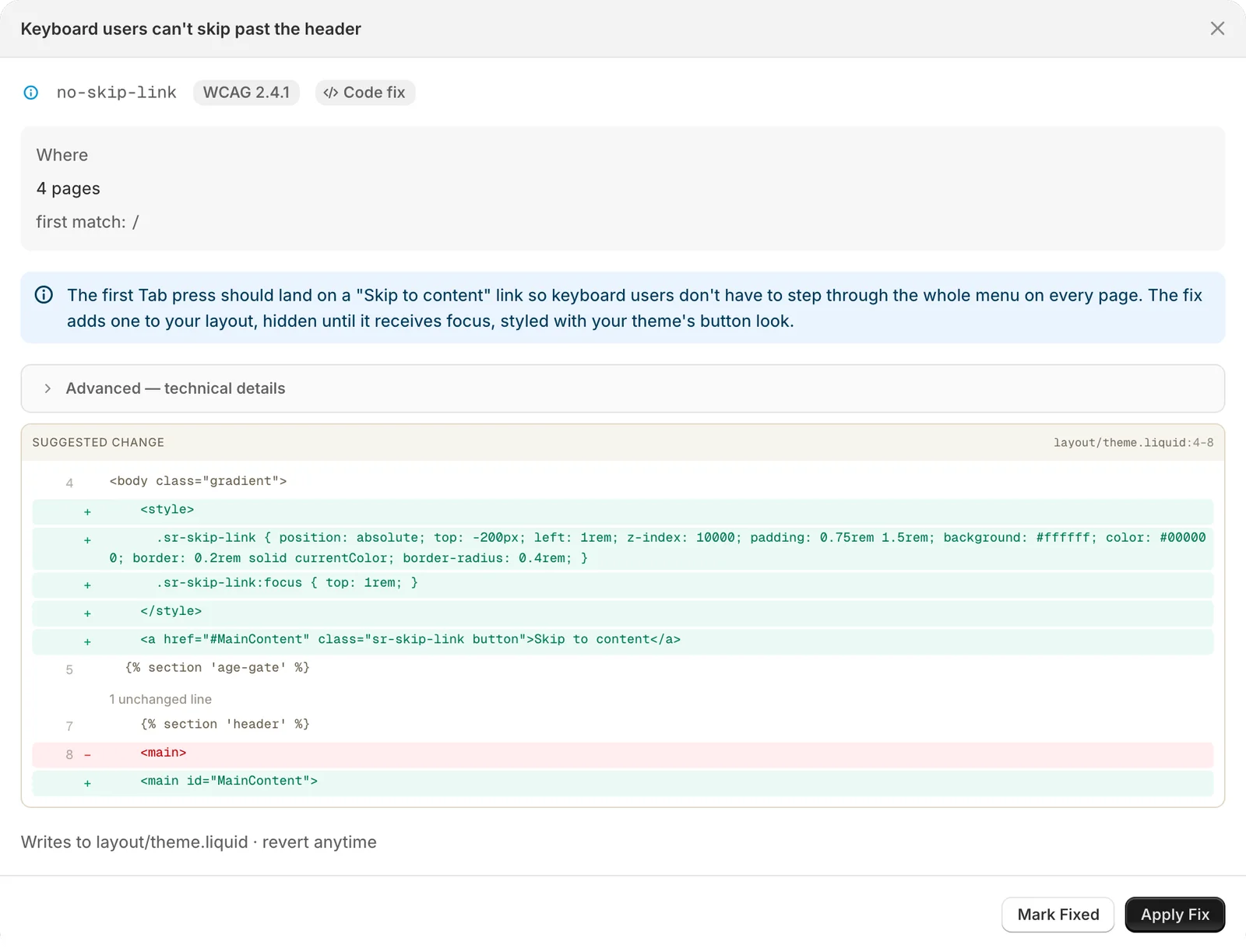
Read the change. The note under it names the file it writes to.
Apply it
Click Apply Fix. The change is written into the theme you're viewing, live or draft, and the button turns to Applied.
The Fixes page records the code before and after, so you can revert it later.
Some fixes need your words
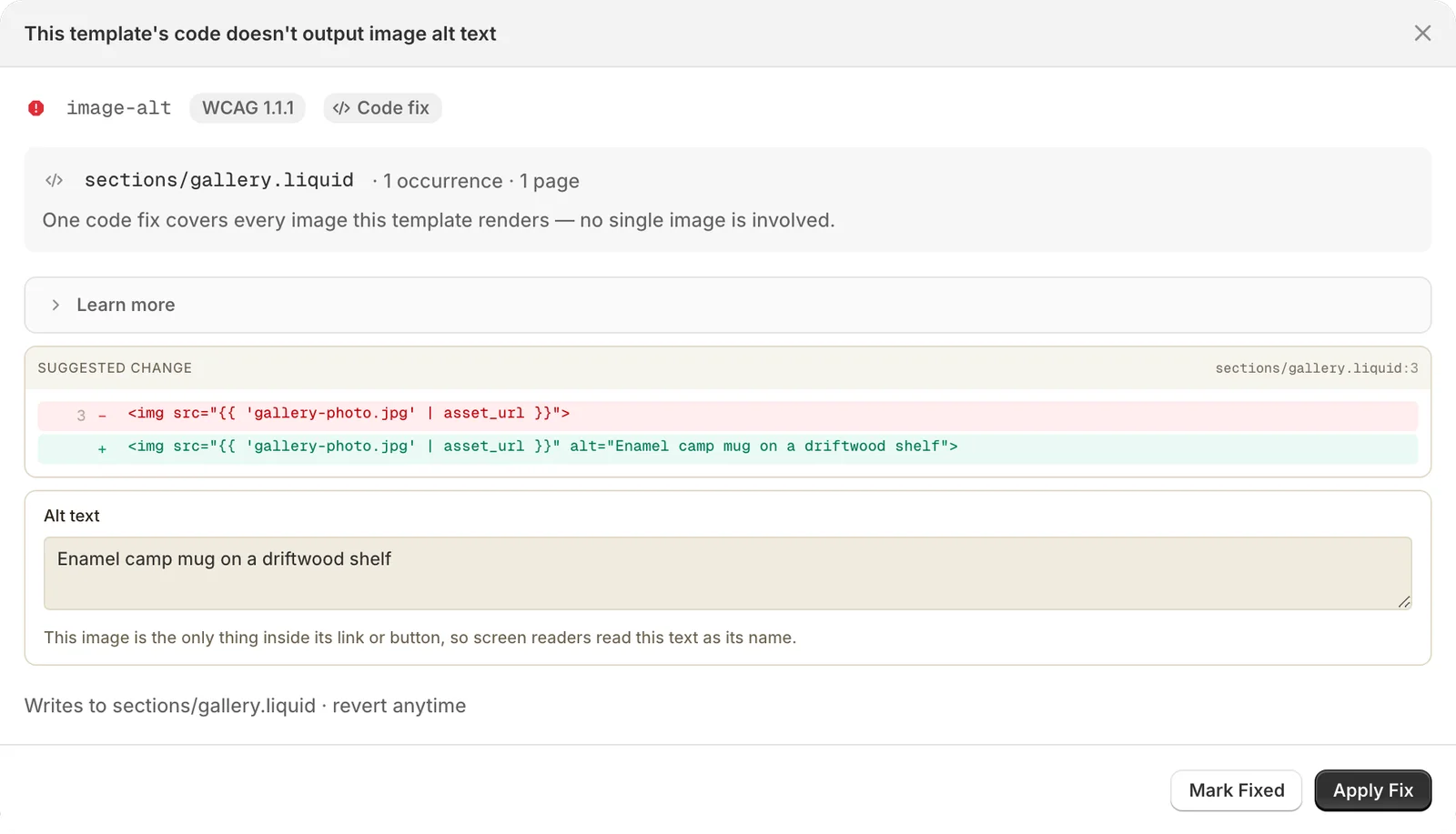
When an image is the only thing inside a link or button, its alt text becomes the control's name. The panel shows an Alt text box with a drafted description. Confirm or edit it before you apply.
How your theme stays safe
A fix changes only the lines shown in the suggested change. Before writing, SiteRemora reads the file as it is now. It holds the fix back when:
- the code has changed since the scan,
- the same code appears more than once, so the right place is unclear, or
- the change would break the Liquid.
The panel tells you when that happens. Run a new scan to pick up the current code, then try again.
Plans
Shore includes five fixes to try, for code or alt text. The panel shows how many are left. Reef and Deep Sea apply as many as you need.