Getting started
Password-protected stores
Scan a store that still has its password page on, before launch or during a redesign.
Why scans need the password
While the password page is on, Shopify shows it to every visitor, including SiteRemora's scans. Without the password, a scan reaches only the password page and finds nothing to check.
Save the password once and every scan signs in with it, the automatic ones included.
Save the password
- In your Shopify admin, go to Online Store > Preferences and copy the storefront password. This is the password shoppers type, separate from your admin login.
- In SiteRemora, open Settings and find Storefront password.
- Paste the password and click Save Password.
SiteRemora tries the password on your password page before saving it. If Shopify turns it away, nothing is saved, and a note asks you to check it under Online Store > Preferences.
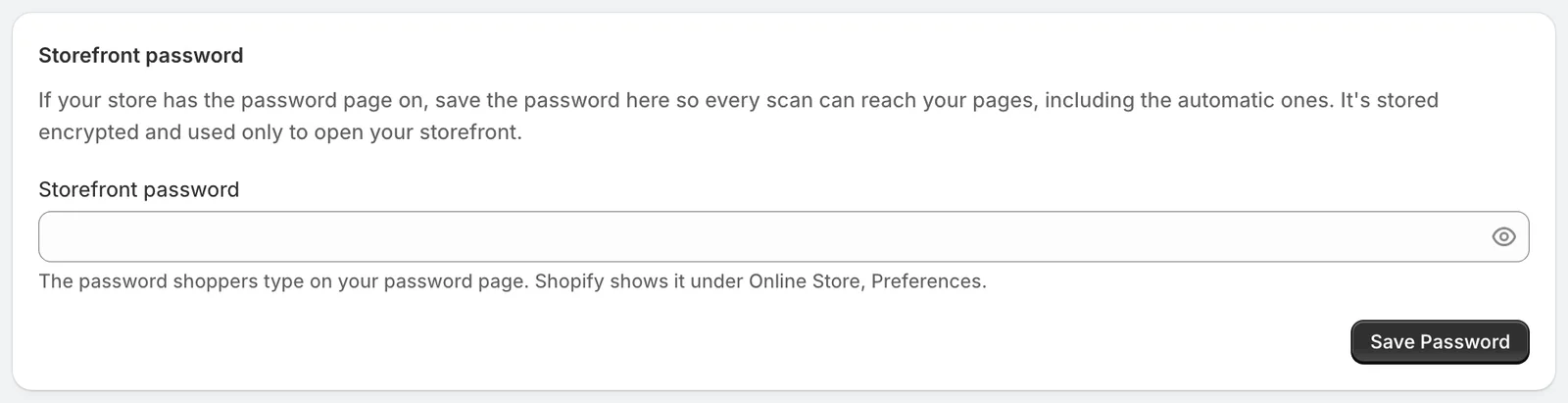
A saved password shows Saved and the date it was checked. Use Change Password when you change it in Shopify. Use Remove Password once the store opens to the public.
Note
The password is stored encrypted and used only to open your storefront for scans.
During setup
If your store is locked when you install SiteRemora, setup asks for the password. Save and Continue stores it. Skip for Now leaves it for later.
Use a password for one scan
The Re-scan dialog and the scan Settings both have a Storefront password (optional) field. A password typed there is used for that scan only, ahead of the saved one.
When a scan only reaches the password page
If every page lands on the password page, you'll see a notice where the results would be, with an Open Settings button. Check the saved password against Online Store > Preferences, save it again if it changed, and click Scan Again.