Guides
Scan and fix a draft theme
Check a redesign or a new theme before it goes live, and fix it before you publish.
Every theme has its own results
Themes lists every theme on your store, with its status, health score, open issues and last scan.
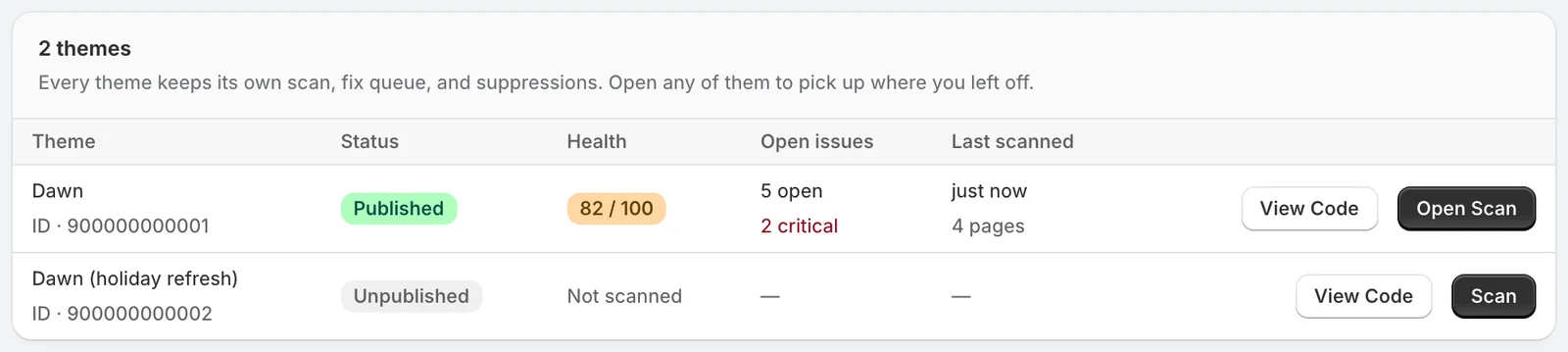
Each theme keeps its own scan, fixes and marked-fixed issues. Work on a draft leaves your live theme's results alone. Every plan can scan any of your themes.
Scan a draft
- On the Themes page, click Scan next to the draft. You can also switch themes from the menu at the top of the Scan page.
- Run the scan. With Scan draft theme on, the default, SiteRemora renders the draft itself, unpublished edits included.
Fix it before you publish
Fixes go to the theme you're viewing, so fixes made on a draft are written to the draft. Publish it in Shopify when it's ready.
Tip
To try fixes away from your live store, duplicate your published theme in Online Store > Themes. Scan the copy, fix it, and publish it when you're happy.
After you publish
Automatic rescans and autopilot work on your published theme. The fixes you made on the draft go live with it, and their history stays on the Fixes page.